CSS Centering

Author: Russ Weakley

How do you center a containing block on a page using CSS? There are two main methods and the choice should be made based on whether your page layout is liquid (will move in and out depending on the size of the browser window) or fixed width.

Centering liquid layouts

Liquid layouts are easy to center using margins on each side of the containing box. The margins can be set with em, pixel or percentage units.

div#container
{
	margin-left: 10%;
	margin-right: 10%;
}

Centering fixed-width layouts

Theoretically, you should be able to apply auto margins to the left and right of the containing block and it should center on the page.

The W3C Visual formatting model states: “If both ‘margin-left’ and ‘margin-right’ are ‘auto’, their used values are equal. This horizontally centers the element with respect to the edges of the containing block.”

So, a containing block should be able to be centered using the following rules:

div#container
{
	margin-left: auto;
	margin-right: auto;
	width: 50em;
}

However, some browsers do not center the containing blocks using this method as they ignore the auto margins. These browsers include:

  • NN4 (Mac and Win)
  • Win/IE4
  • Win/IE5
  • Win/IE5.5
  • Win/IE6 (when in quirks-mode)

By adding two simple rules, this problem can be overcome in all of the browsers mentioned above, excluding NN4.

1. Center the body

While these browsers ignore auto margins, they will follow “text-align: center”. If this is applied to the body, the containing block will center correctly. So, a new rule is added:

body
{
	text-align: center;
}

div#container
{
	margin-left: auto;
	margin-right: auto;
	width: 50em;
}

2. Resetting text-align

The only problem with this new rule is that all content on the page is now center-aligned. To overcome the center alignment problem, a new declaration is added within the containing block rule set – “text-align: left”. The final CSS code is:

body
{
	text-align: center;
}

div#container
{
	margin-left: auto;
	margin-right: auto;
	width: 50em;
	text-align: left;
}
CSS Centering – fixed layout

Use this simple css code to center page. The style has not been tested with all types and version of browsers, so if it does not work for you try some other suggested code on this website, simply searching for “centering.’

External style sheet

Style.css

@charset "utf-8"; /* CSS Document */ 
body 
      {
            padding-top: 10px;
            text-align: center;
 }

.center_body 
     {
            text-align: left;
            width: 960px;
            height: 600px;
            padding: 5px;
            margin: 0 auto;
 } 
Centered-Page.html
Import external css in the page
               <link rel="stylesheet" type="text/css" href="style.css" />

Internal style sheet

Centered-Page.html

<style type="text/css">

body 
      {
          padding-top: 10px;
          text-align: center;
    }
.center_body 
     {
          text-align: left;
          width: 960px;
          height: 600px;;
          padding 5px;
          margin: 0 auto;
    }
</style>

Monthly Event Calendar – Query String Parameter

Description:

ASP.NET Toolbox calendar control which use control parameter to query db records and display event(s) on calendar item selection change. This is suitable for displaying events on PostBack call on the same page.

Elements:

  1. Events.mdb / or MS SQL
  2. Web.config
  3. Month-2.aspx
  4. Month-2.aspx.vb
  5. Dtgrid.css

Method:

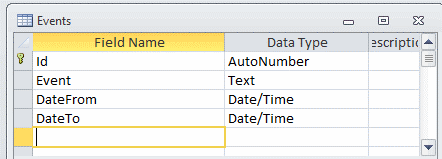
  1. Create table Events (Id [primary key – AutoNumber], Event [Text], DateFrom [Date/Time], DateTo[Date/Time].
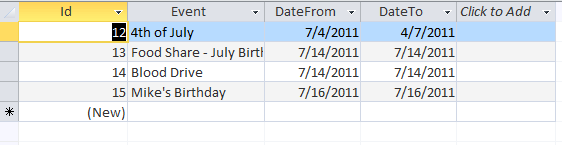
  2. Enter some data in the table
  3. Create/re-write web.config file (download web.config file here)
  4. Add New Item and name it Month-2.aspx or whatever you like
  5. Import dtgrig.css (downolad dtgrid.css file here)
  6. Drag calendar control from toolbox to designer
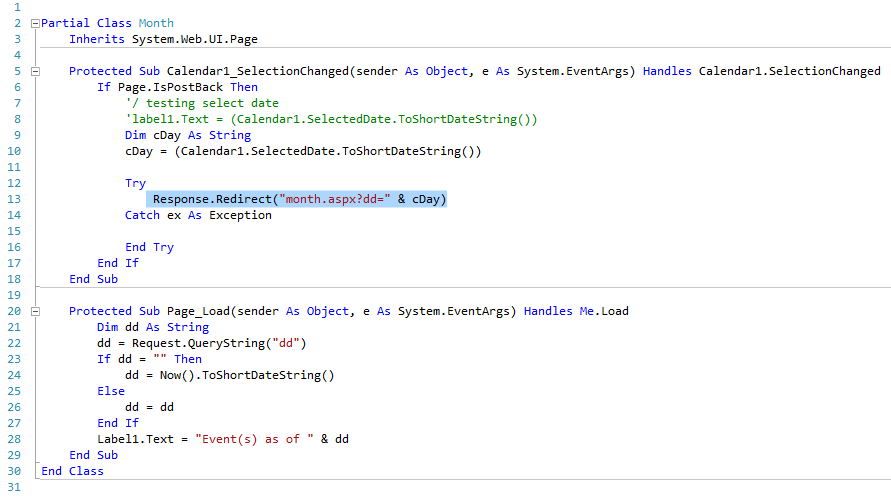
  7. Double click designer and in code behind create two subs: Page_Load and Calender1_SelectionChanged
  8. Redirect page to your liking (highlighted). In this case I redirected hit to a same page and I am using query string to display record(s) below the calendar. You can use new page, pop-up window or jQuery to call data
  9. Drag “Events” table from Server Explorer to designer; Configure Data Source WHERE DateFrom = QueryString – dd (querystring field value) and add it to a SQL expression.
  10. Configure css property for your calendar and grid view and you are good to go.